Everything Claude Can Do: The Complete Business Guide
If you have opened Claude, typed a question, gotten a good answer, and thought that was probably ten percent of what this thing does, you were right. Most people use a fraction of the platform, not because the rest is hard, but because nobody gave them the tour.
Builds and governs monday.com and Claude AI rollouts at Workiflow, a monday.com Platinum Partner and member of Anthropic's Claude Partner Network.
So here is the tour. We will go through how to set it up, the three different ways to actually work with it, how to make it sound like your company, how to pick the right model, and everything it can build for you. Wherever you see a prompt in quotes, you can paste it straight into Claude and watch it work. Let us get into it.
Setting up your workspace
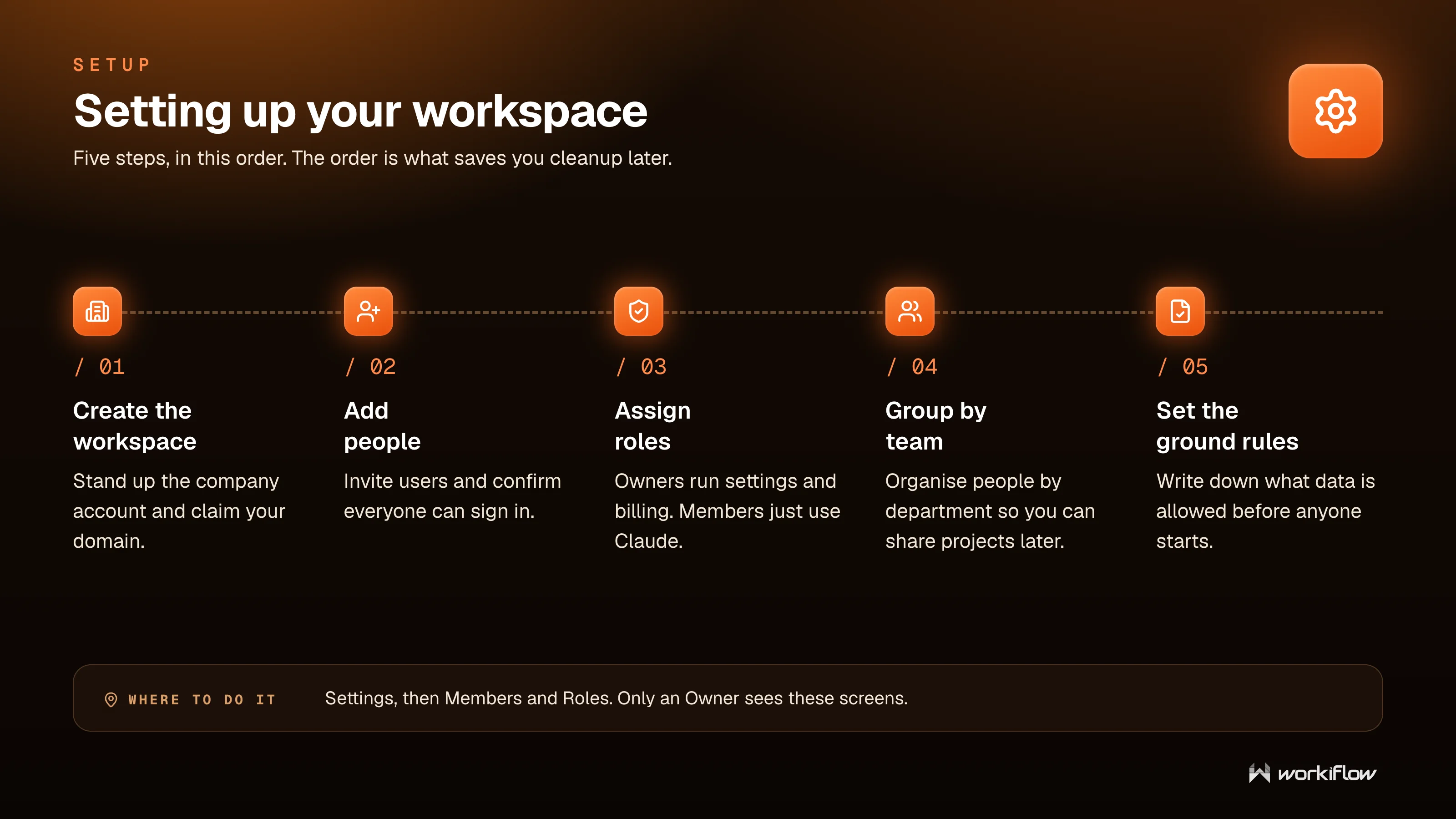
There is an order to setting this up, and following it saves you cleanup later. Stand up the company account and claim your domain, invite your people and confirm everyone can sign in, then assign roles. Owners run settings and billing, and members simply use Claude. Group people by department so you can share projects with the right teams later, and write down what data is allowed before anyone starts. That last step sounds boring and it is the one that prevents the most headaches. You do all of this under Settings, then Members and Roles, and only an Owner sees those screens.
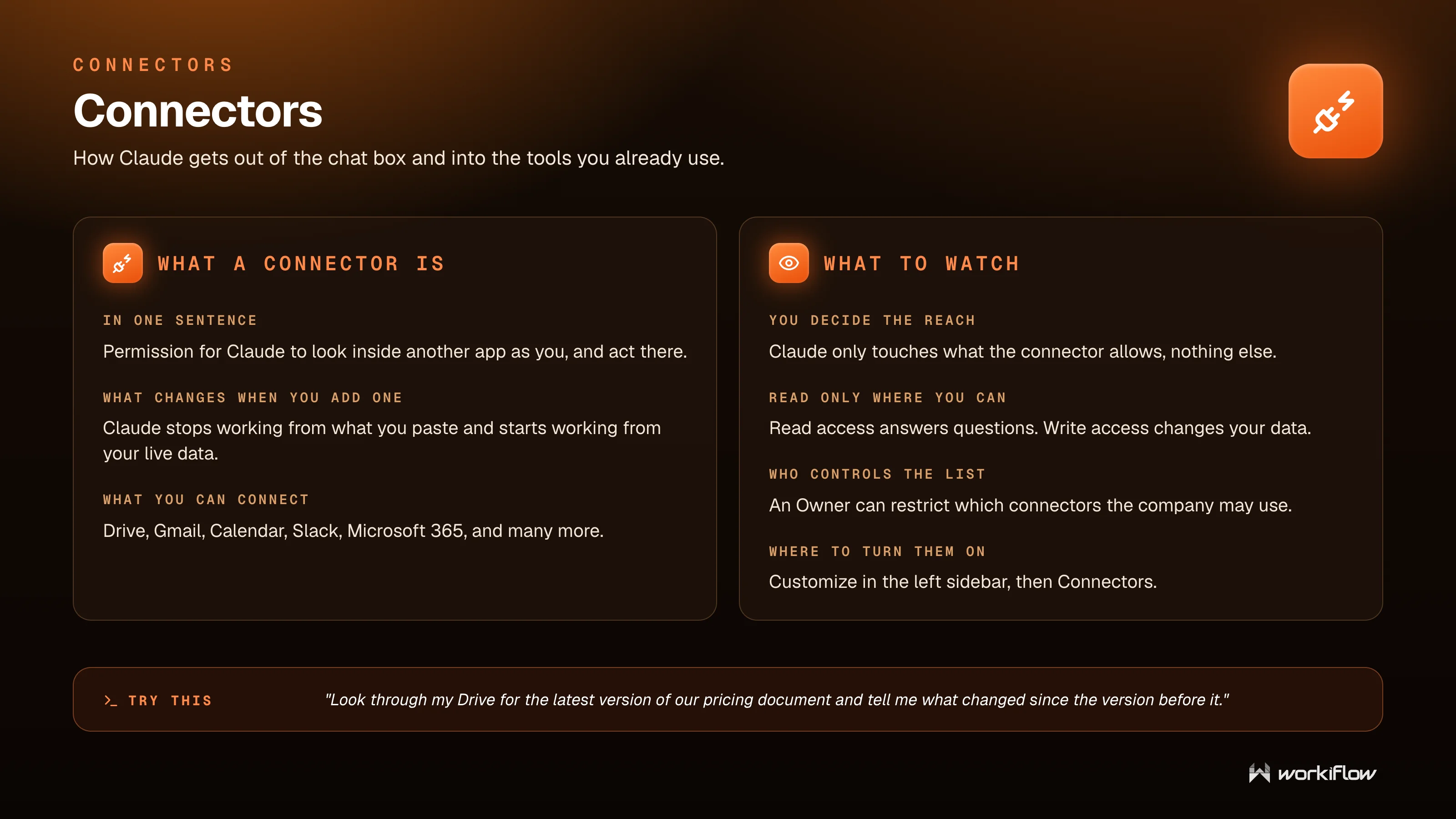
Once the workspace exists, the single most useful thing you can do is add connectors. A connector is permission for Claude to look inside another app as you, and act there. The moment you add one, Claude stops working from what you paste into it and starts working from your live data. You can connect Drive, Gmail, Calendar, Slack, Microsoft 365, and many more.
You stay in control of how far that reach goes. Claude only touches what the connector allows, nothing else, and you should give read only access wherever you can, since read access answers questions while write access changes your data. An Owner can restrict which connectors the company is allowed to use. You turn them on under Customize in the left sidebar, then Connectors.
Try this
“Look through my Drive for the latest version of our pricing document and tell me what changed since the version before it.”
The three ways to work
This is the part that unlocks everything, and it is where most people have the biggest aha. There are three ways to work with Claude, they share one interface, and they do very different jobs.
Chat
Chat is a back and forth conversation where you stay involved on every turn. It answers one thing at a time, in seconds, and you correct as you go. It lives on web, desktop, and mobile, and it can hand you an answer or a simple file like a one page doc, a table, or a markdown file.
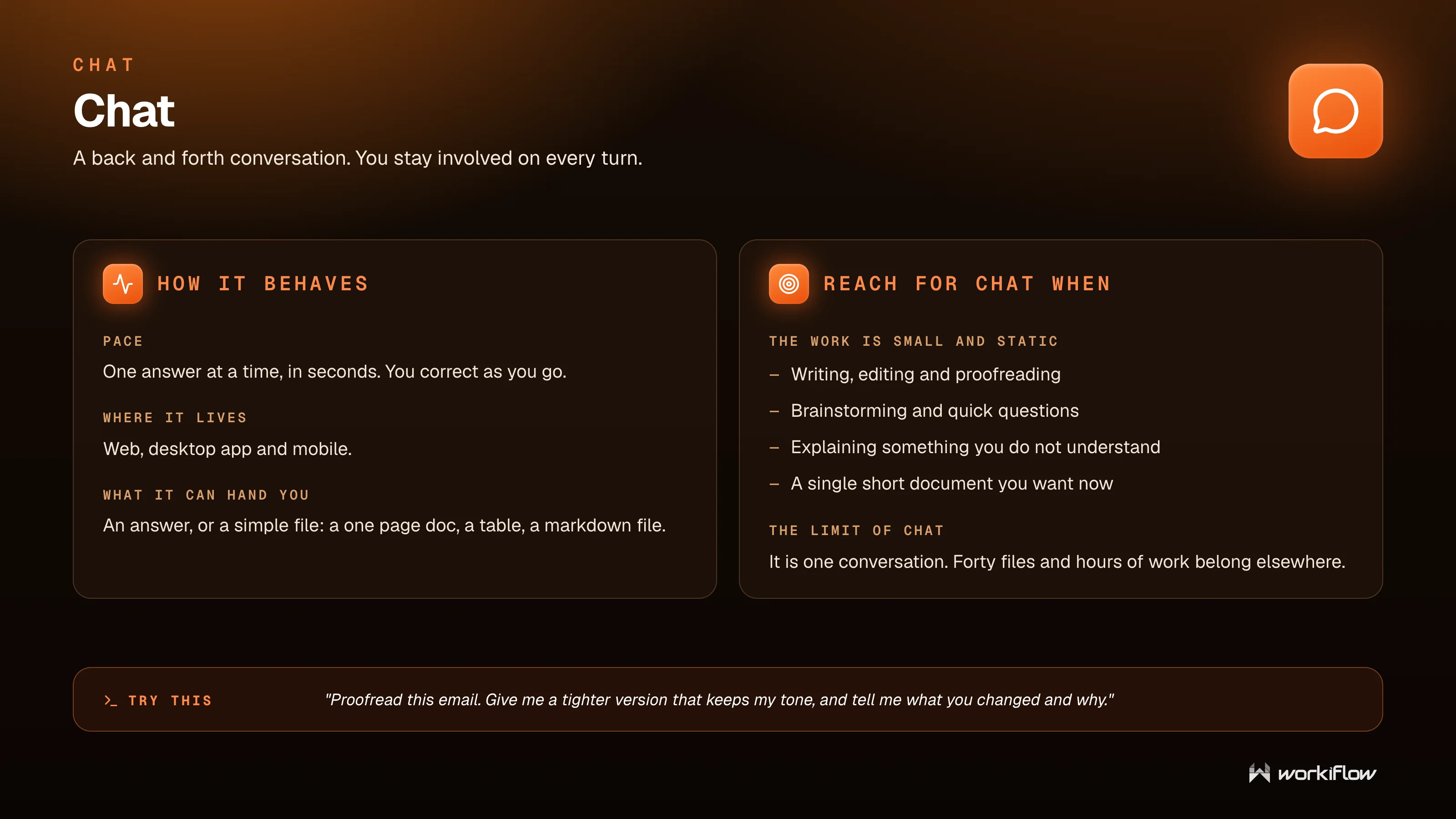
Reach for Chat when the work is small and self-contained: writing, editing, and proofreading, brainstorming and quick questions, explaining something you do not understand, or a single short document you want right now. Its limit is simply that it is one conversation. Forty files and hours of work belong somewhere else.
Try this
“Proofread this email. Give me a tighter version that keeps my tone, and tell me what you changed and why.”
Cowork
Cowork is the opposite posture. You hand the whole task over, and Claude works on its own and brings back the finished thing. It runs for minutes to hours without you, planning its own steps. Unlike Chat, it can open many files, write new ones, and use tools in sequence, and it hands you finished files or a dashboard that refreshes itself.
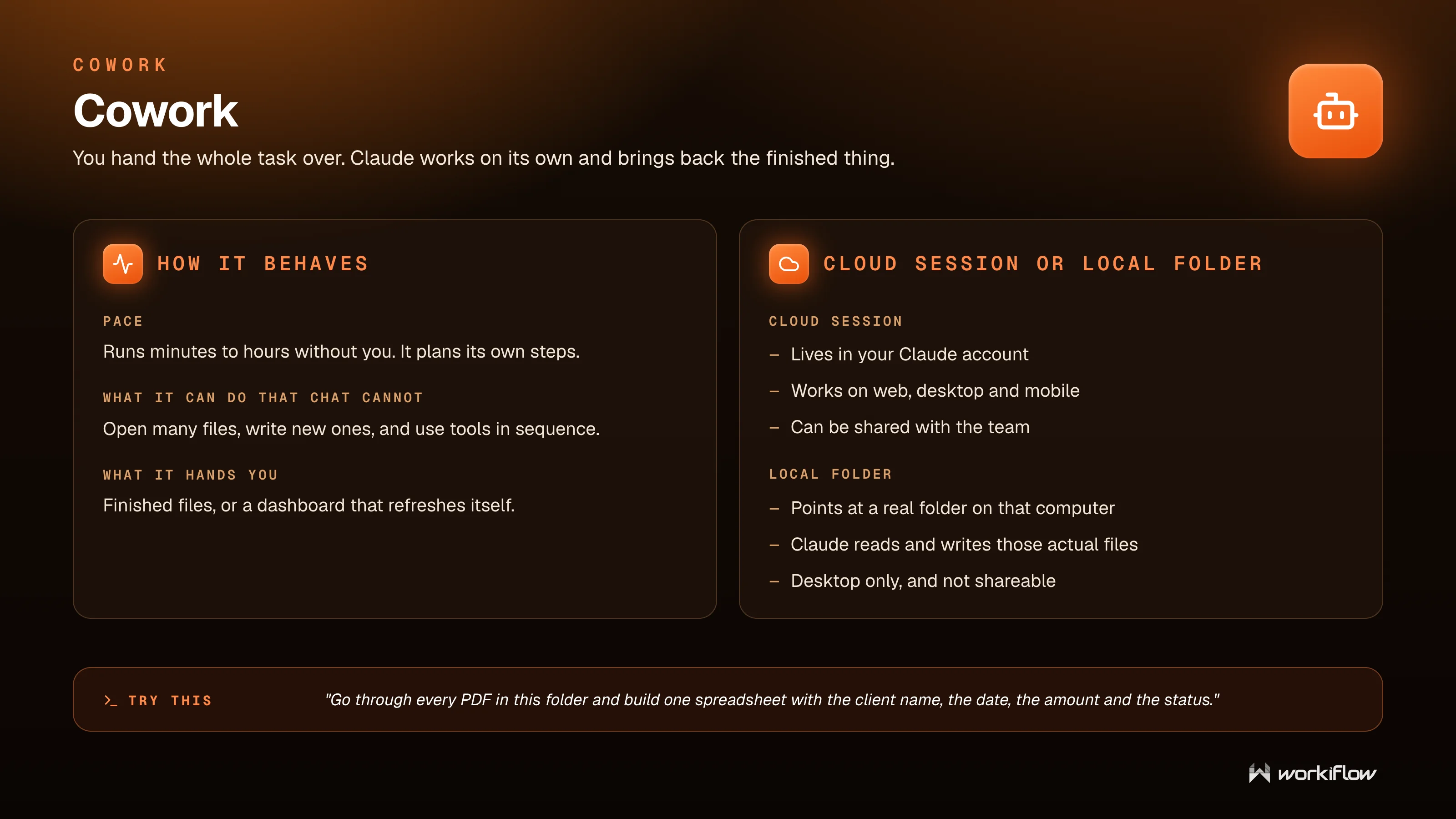
Cowork works one of two ways. A cloud session lives in your Claude account, works on web, desktop, and mobile, and can be shared with the team. A local folder points at a real folder on that one computer, so Claude reads and writes those actual files, but it is desktop only and not shareable. You pick based on whether the work needs to touch files on your machine or live in the cloud.
Try this
“Go through every PDF in this folder and build one spreadsheet with the client name, the date, the amount, and the status.”
Chat versus Cowork, the honest comparison
The question is always the same: are you in the loop or not. With Chat you stay in the loop every turn and get back an answer or one simple file, in seconds to minutes, and it is light against your usage. With Cowork you hand it over and walk away, get back finished files or a live dashboard, in minutes to hours, and it is heavy, since one task can equal many chats.
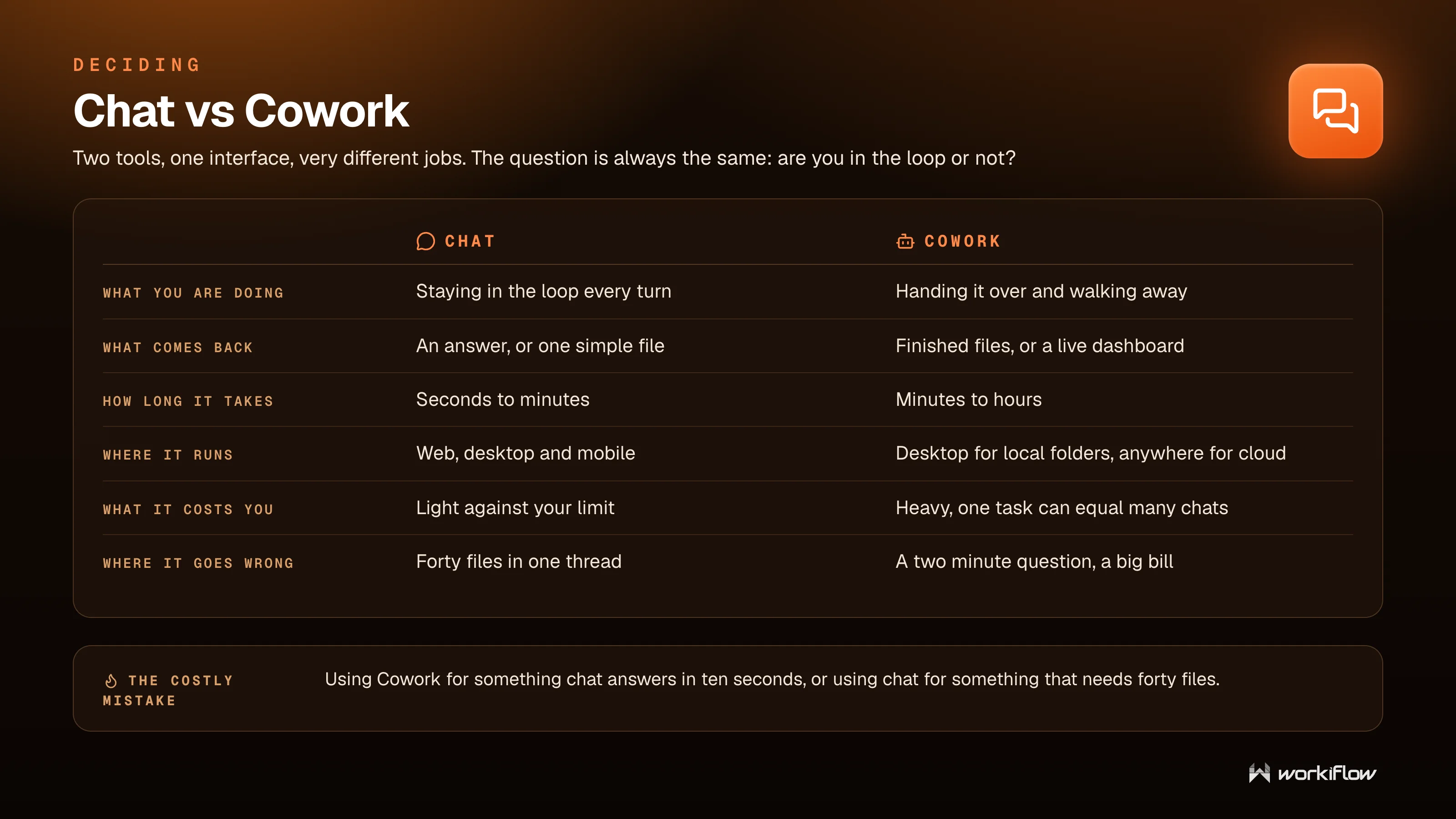
The costly mistake runs in both directions. Using Cowork for something Chat answers in ten seconds wastes your allowance, and using Chat for something that needs forty files wastes your afternoon. Match the tool to the shape of the work.
Projects
A project is a folder for one kind of work that remembers your instructions and your reference files. You put in instructions for this work only, and files up to 30 MB each, unlimited in number, or pasted text. In return, every chat starts already briefed, you stop re-pasting the same context, and the team shares one source of truth.
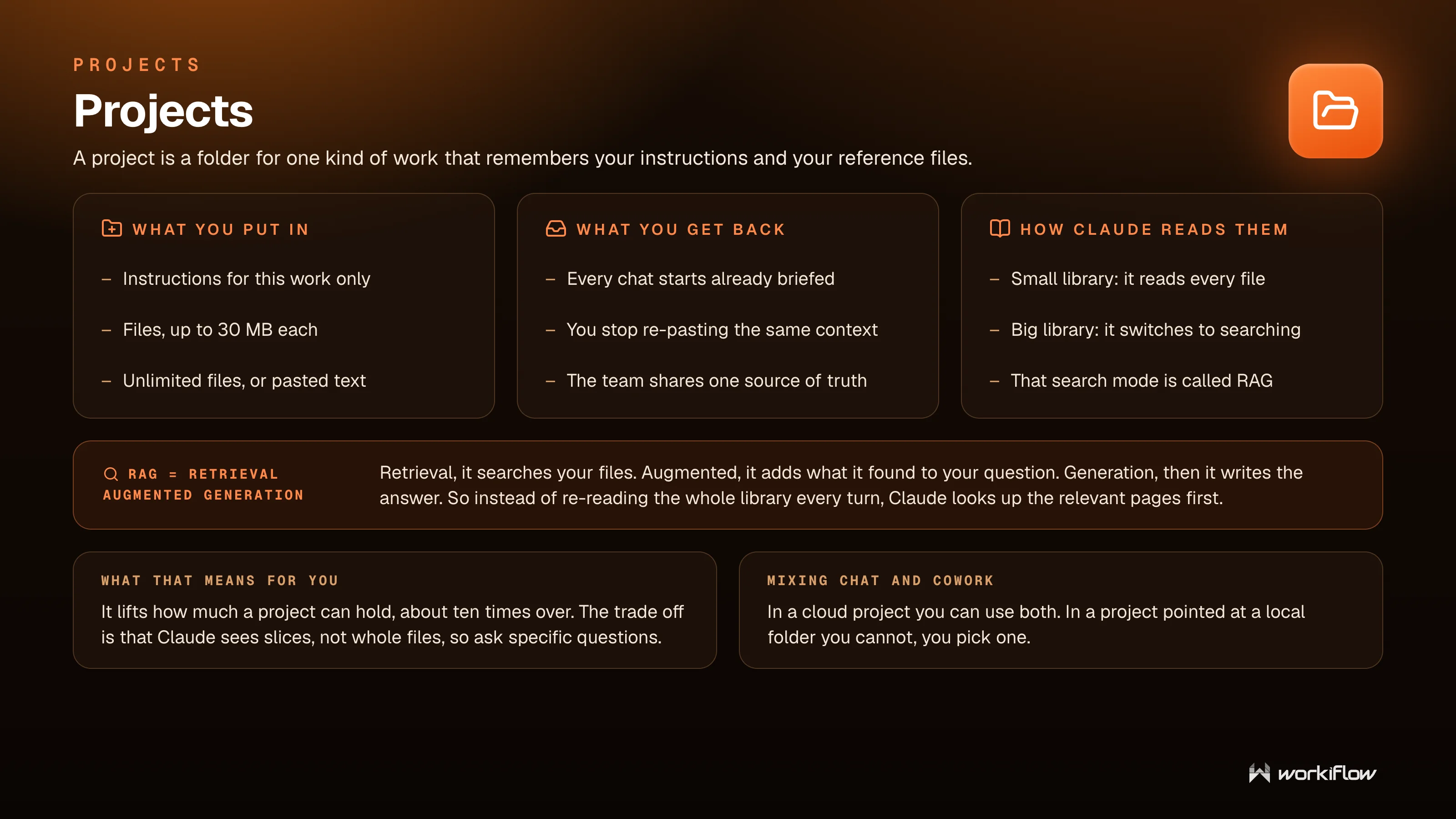
There is a nice detail in how Claude reads a project. With a small library it reads every file. With a big one it switches to searching, a mode called RAG, which stands for retrieval augmented generation. It retrieves the relevant pages from your files, augments your question with what it found, and then generates the answer, instead of re-reading the whole library every turn. The practical effect is that a project can hold roughly ten times more this way. The trade off is that Claude sees slices rather than whole files, so you get the best results by asking specific questions.
One thing worth knowing: in a cloud project you can use both Chat and Cowork inside it, but in a project pointed at a local folder you pick one.
So when do you use what
A project is not a third option, it is where Chat or Cowork runs. So ask two questions in order. First, does this work come back. If it does, the context belongs in a project. Second, do you stay in the loop or hand it over. That tells you Chat or Cowork.
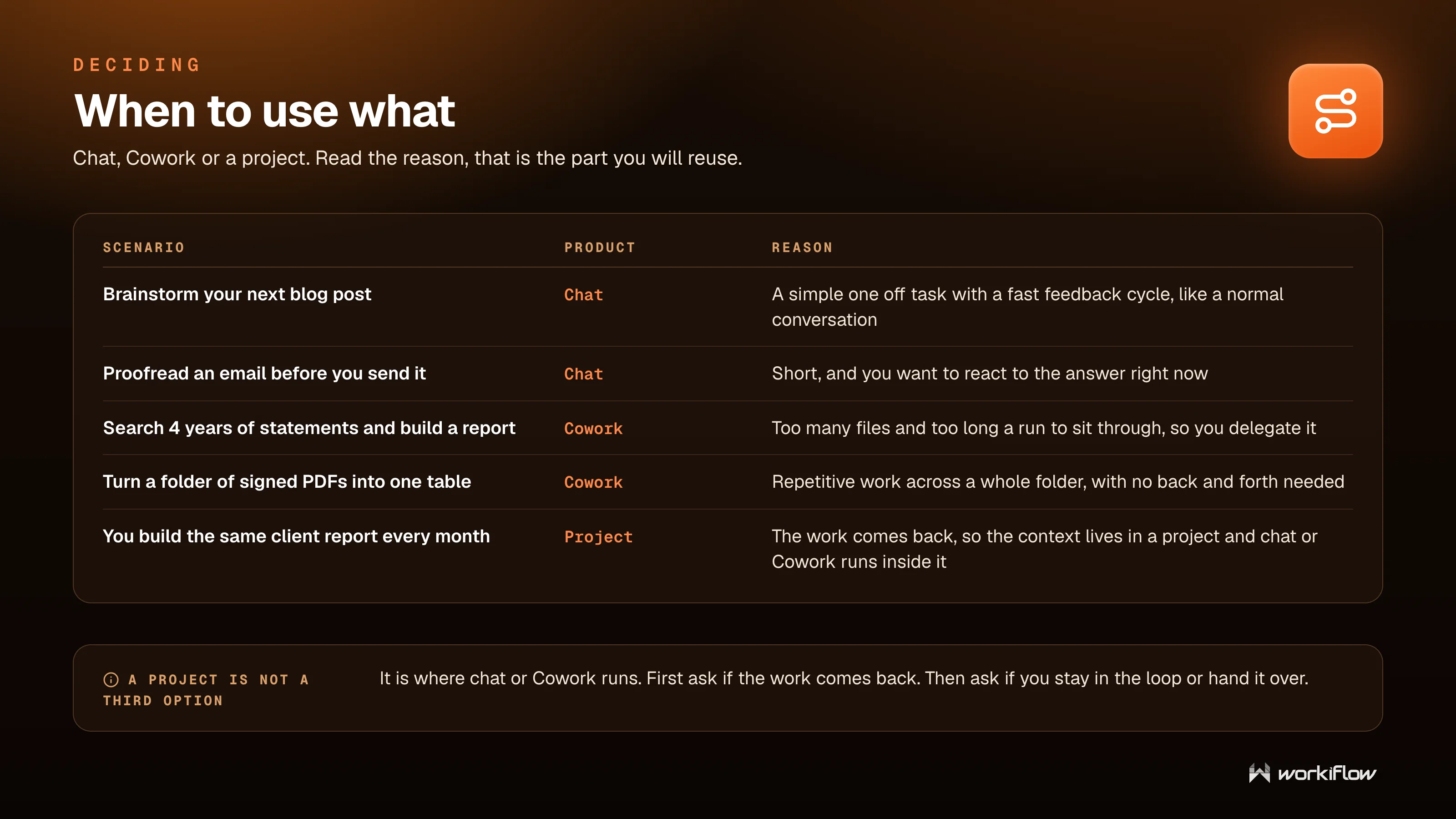
Brainstorming a blog post or proofreading an email is Chat, because it is short and you want to react to the answer now. Searching four years of statements to build a report, or turning a folder of signed PDFs into one table, is Cowork, because there are too many files and too long a run to sit through. Building the same client report every month is a project, with Chat or Cowork running inside it.
Telling Claude who you are
Claude gets dramatically more useful when it knows your context, and you set that up in layers.
Company instructions
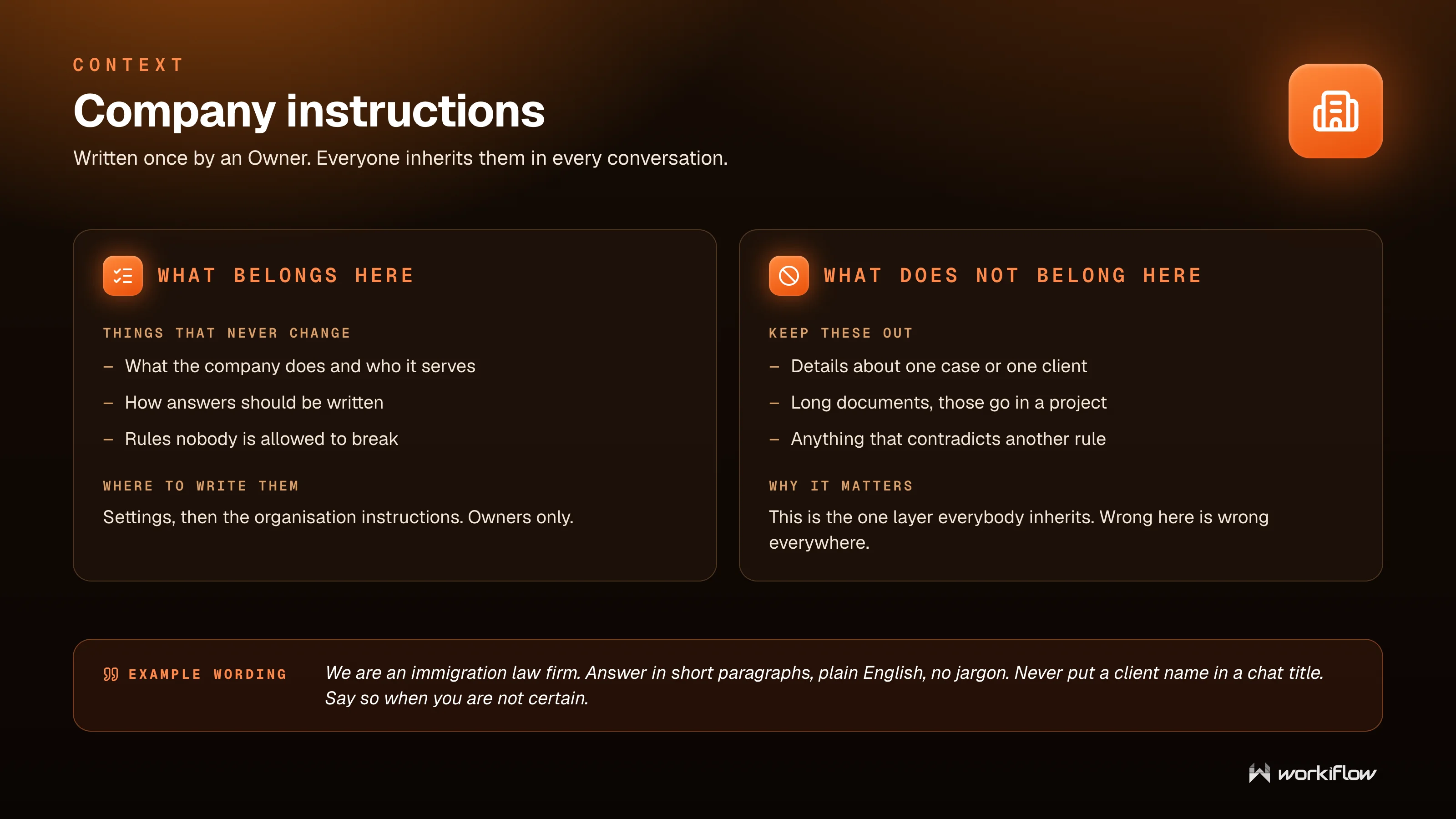
Company instructions are written once by an Owner, and everyone inherits them in every conversation. This is where the things that never change belong: what the company does and who it serves, how answers should be written, and rules nobody is allowed to break. Keep out anything about one case or one client, long documents, which belong in a project, and anything that contradicts another rule. You write them under Settings, in the organisation instructions, and only Owners can. This is the one layer everybody inherits, so getting it wrong is wrong everywhere, which is exactly why it is worth doing carefully.
Personal instructions
Personal instructions are your own layer on top of the company one, and nobody else sees them. Set your role and what you work on daily, the shape you want answers in, and things you never want repeated back. Memory is separate from this. Instructions are what you wrote down, while memory is what Claude picked up over time, and it is yours to review or clear.
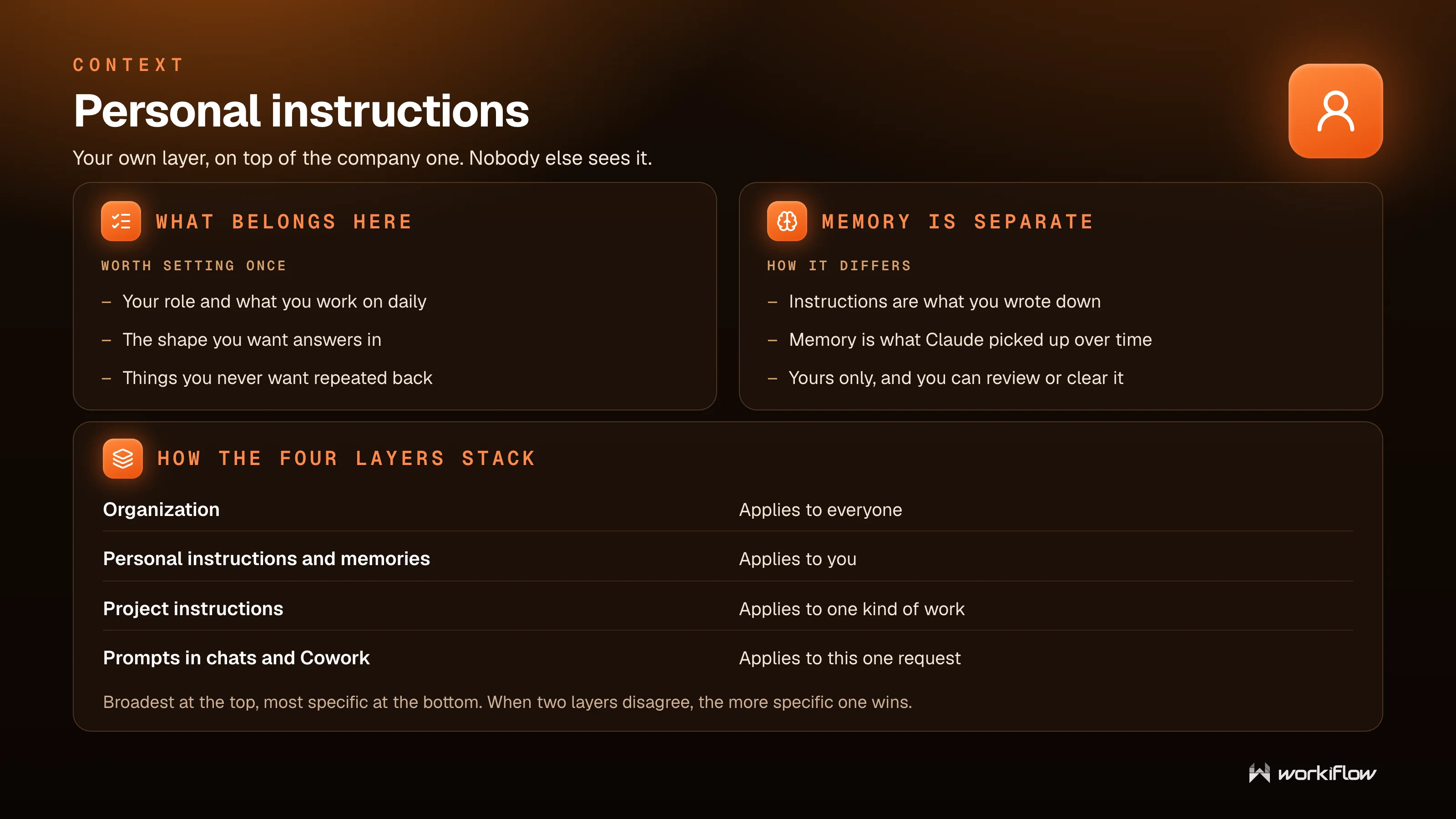
It helps to picture the four layers stacking. The organisation layer applies to everyone, your personal instructions and memory apply to you, project instructions apply to one kind of work, and the prompt in a given chat applies to that one request. Broadest at the top, most specific at the bottom, and when two layers disagree, the more specific one wins.
Models, limits, and what things cost
Picking a model
There are four models in the picker, and the real difference between them is how much supervision each one needs, not just how well it writes. Haiku is the fastest and shallowest, good when the task is obvious. Sonnet is the default and handles almost all everyday work. Opus holds long reasoning without losing the thread. Fable is the most capable, and it plans and checks its own work.
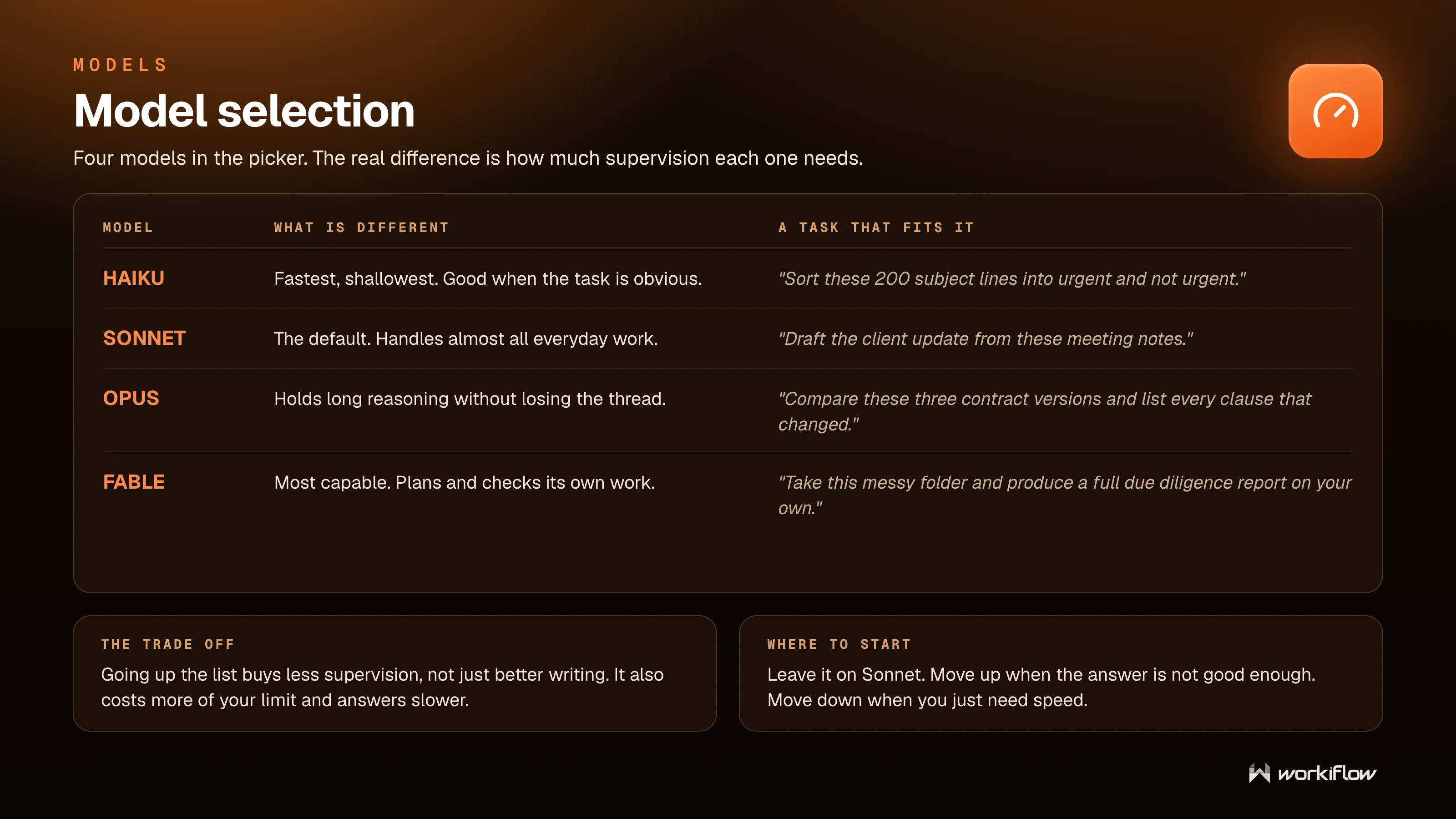
Going up the list buys you less supervision, and it also costs more of your usage and answers more slowly. So leave it on Sonnet, move up when the answer is not good enough, and move down when you just need speed.
Try this on Sonnet
“Draft the client update from these meeting notes.” And when you have something knottier, try Opus with “Compare these three contract versions and list every clause that changed.”
Context and tokens
Two words you will keep hearing are context and tokens. A token is the unit Claude counts in, a piece of a word, where one word is about one and a third tokens. A short email is a few hundred tokens, and a thirty page contract is tens of thousands.
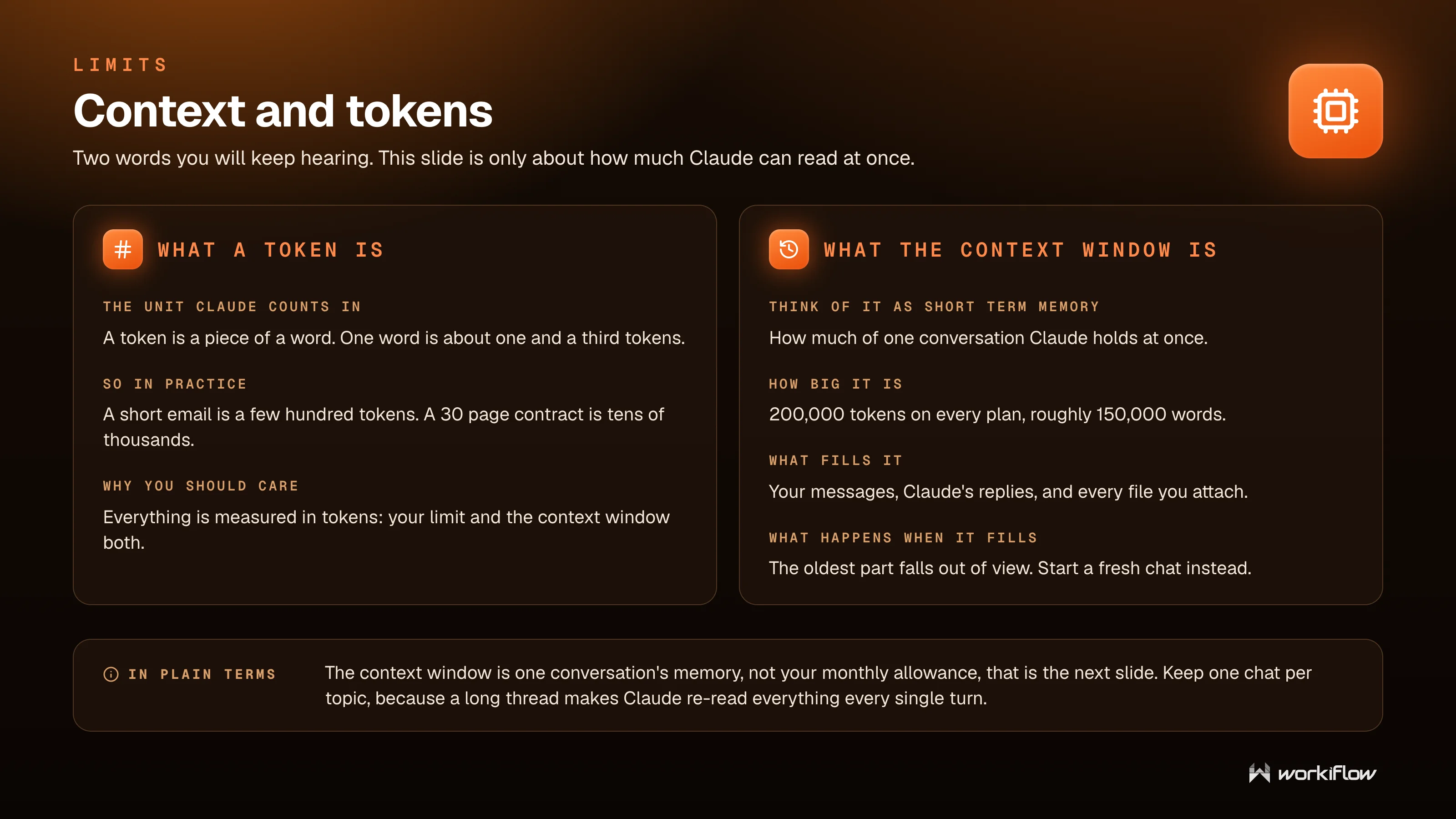
The context window is the amount of one conversation Claude can hold at once, a kind of short term memory. It is 200,000 tokens on every plan, roughly 150,000 words, and it is filled by your messages, Claude’s replies, and every file you attach. When it fills, the oldest part falls out of view, so the move is to start a fresh chat rather than let one run forever. Keeping one chat per topic matters, because a long thread makes Claude re-read everything on every single turn.
Usage limits and seats
Usage is about how much you can ask for in a period. There are two limits at once, a rolling session window of about five hours plus a weekly cap, and on Team it resets at a fixed time each week. You can see yours under Settings, then Usage, which also shows your next reset time. Chat, Cowork, and Claude Code all draw from the same allowance.
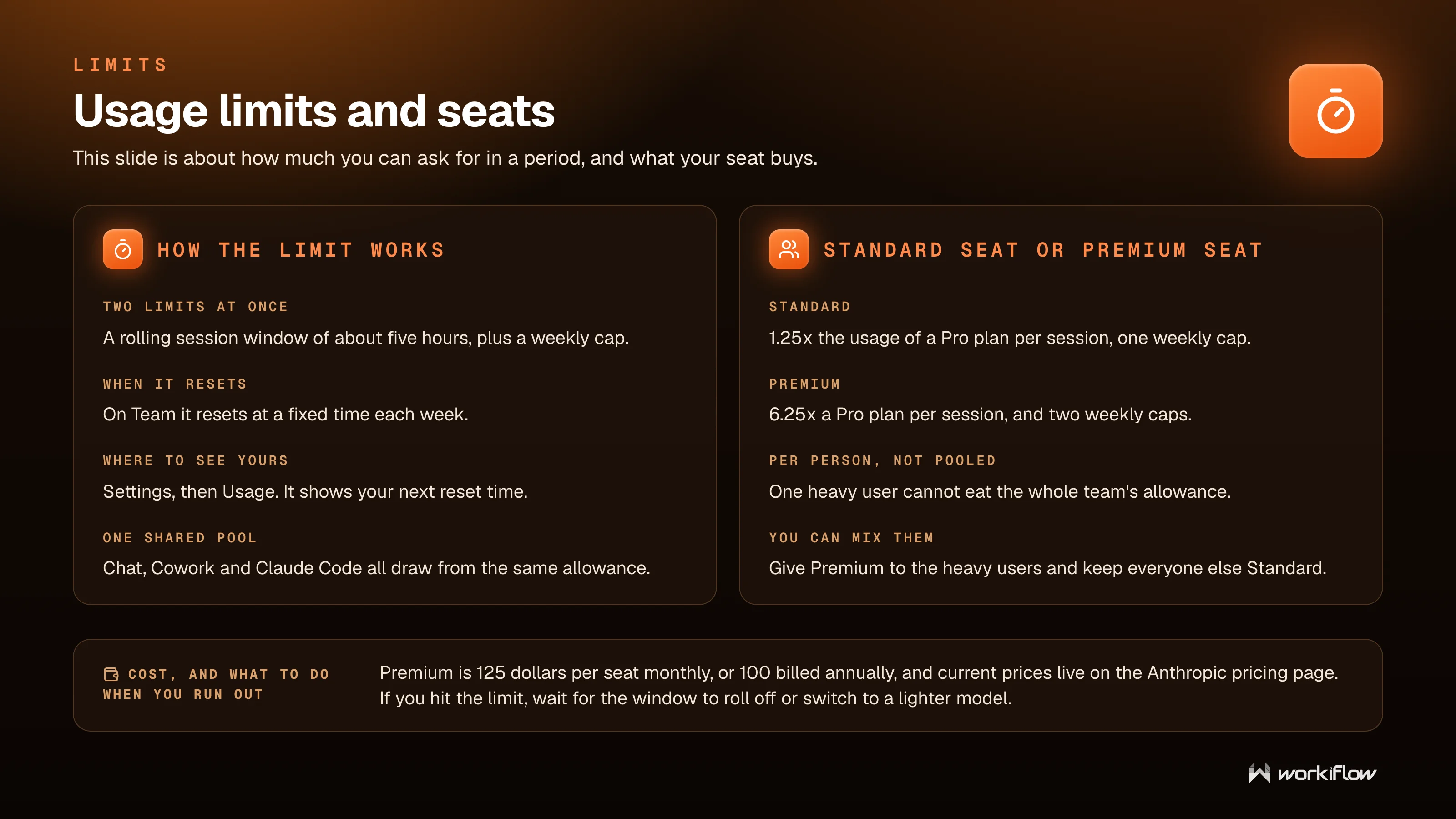
Seats come in two kinds. A standard seat gives you more usage per session than a Pro plan, and a premium seat gives considerably more plus a second weekly cap, which suits your heavy users. Usage is per person rather than pooled, so one heavy user cannot eat the whole team’s allowance, and you can mix seat types, giving premium to the people who need it and keeping everyone else on standard. Current prices live on the Anthropic pricing page, and if you hit a limit you can wait for the window to roll off or switch to a lighter model.
What Claude builds
This is the block that surprises people the most, because it is where Claude stops answering and starts producing.
Artifacts
When the answer should be a thing you keep, Claude builds it beside the chat instead of typing it out. An artifact is a panel next to the conversation holding a real document or a small tool. You change it by asking rather than editing, go back to an earlier version, and download it or publish a link. Typical ones are reports, tables, checklists, and small calculators.
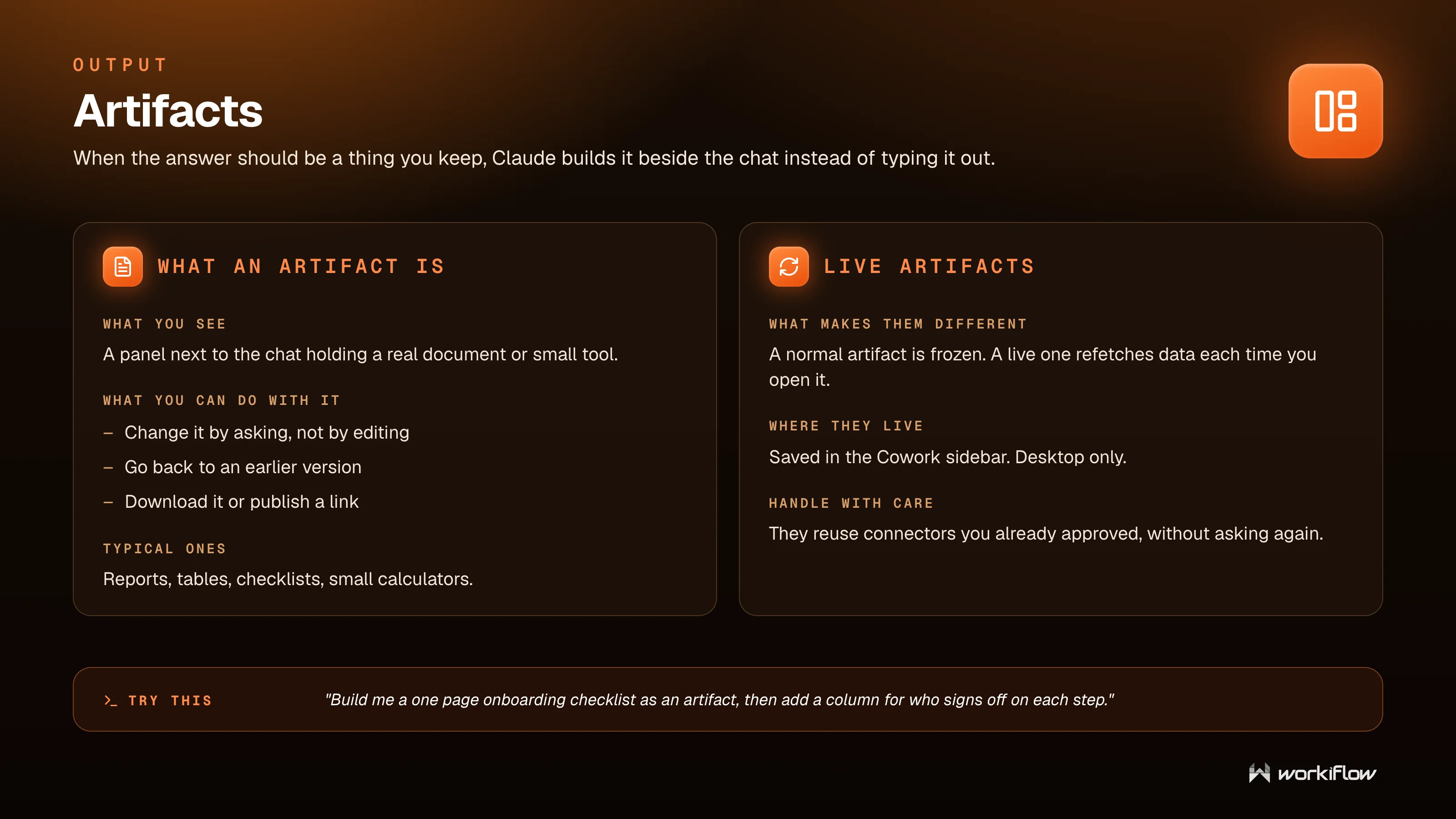
Live artifacts go a step further. A normal artifact is frozen, but a live one refetches its data each time you open it, which is perfect for something you want current. They are saved in the Cowork sidebar, on desktop, and they reuse connectors you already approved, so handle them with a little care.
Try this
“Build me a one page onboarding checklist as an artifact, then add a column for who signs off on each step.”
Dispatch
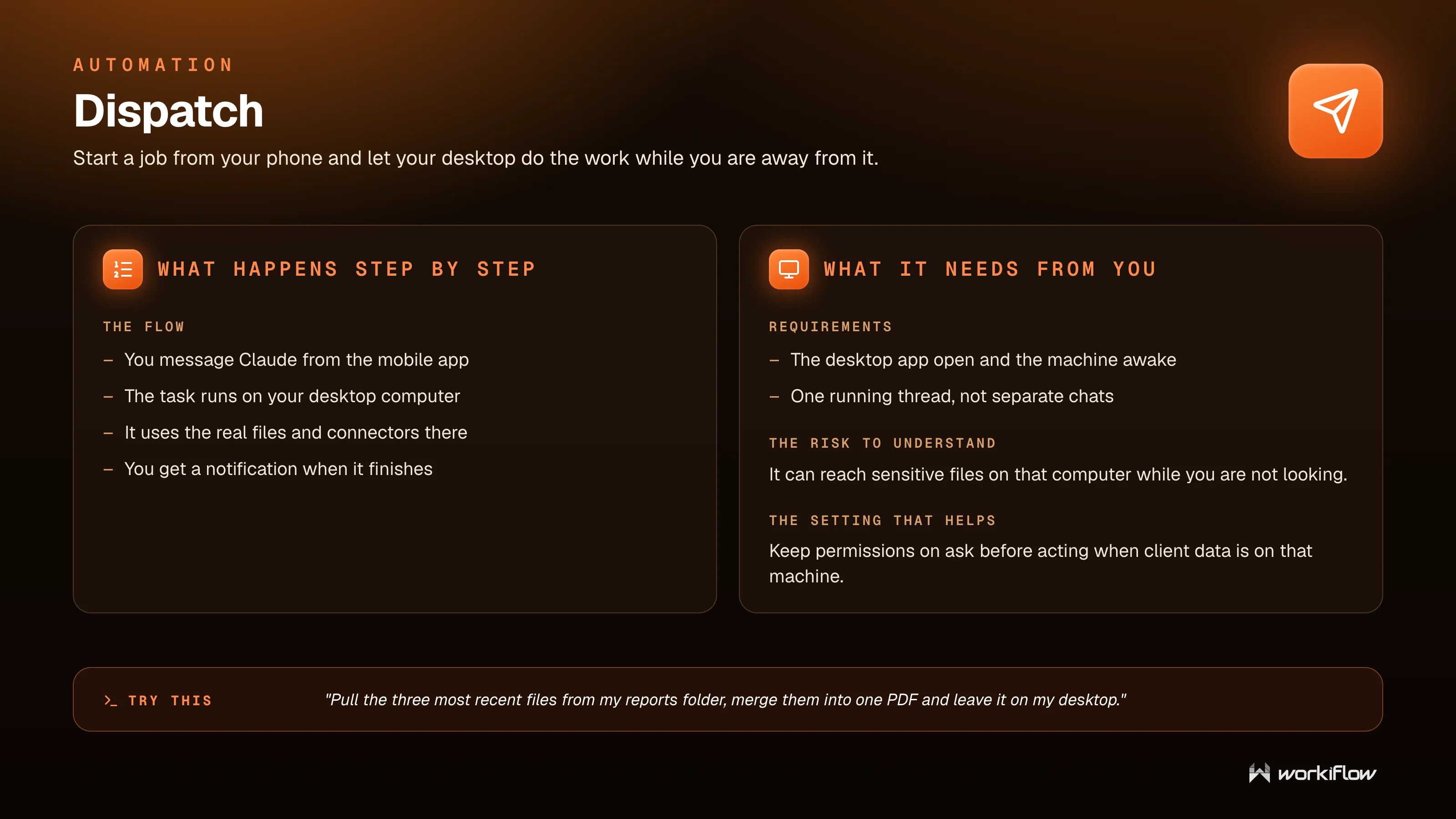
Dispatch lets you start a job from your phone and let your desktop do the work while you are away from it. You message Claude from the mobile app, the task runs on your desktop computer using the real files and connectors there, and you get a notification when it finishes. It needs the desktop app open and the machine awake, and it runs as one thread rather than separate chats. The risk to understand is that it can reach sensitive files on that computer while you are not looking, so keep permissions on ask before acting when client data lives on that machine.
Try this
“Pull the three most recent files from my reports folder, merge them into one PDF, and leave it on my desktop.”
Design
Design is a separate workspace for visual work, where you describe what you want and Claude builds the working thing rather than a picture of it. It has a canvas you can see, edit directly, and comment on. It learns your brand once, so load your colours, fonts, and logo and new work reuses them. It can start from a prompt, an old deck, a document, or a website, and you walk away with slide decks, one pagers, landing pages, and clickable prototypes, exported to PDF, PowerPoint, or HTML. Today it is a research preview from Anthropic Labs, on paid plans.
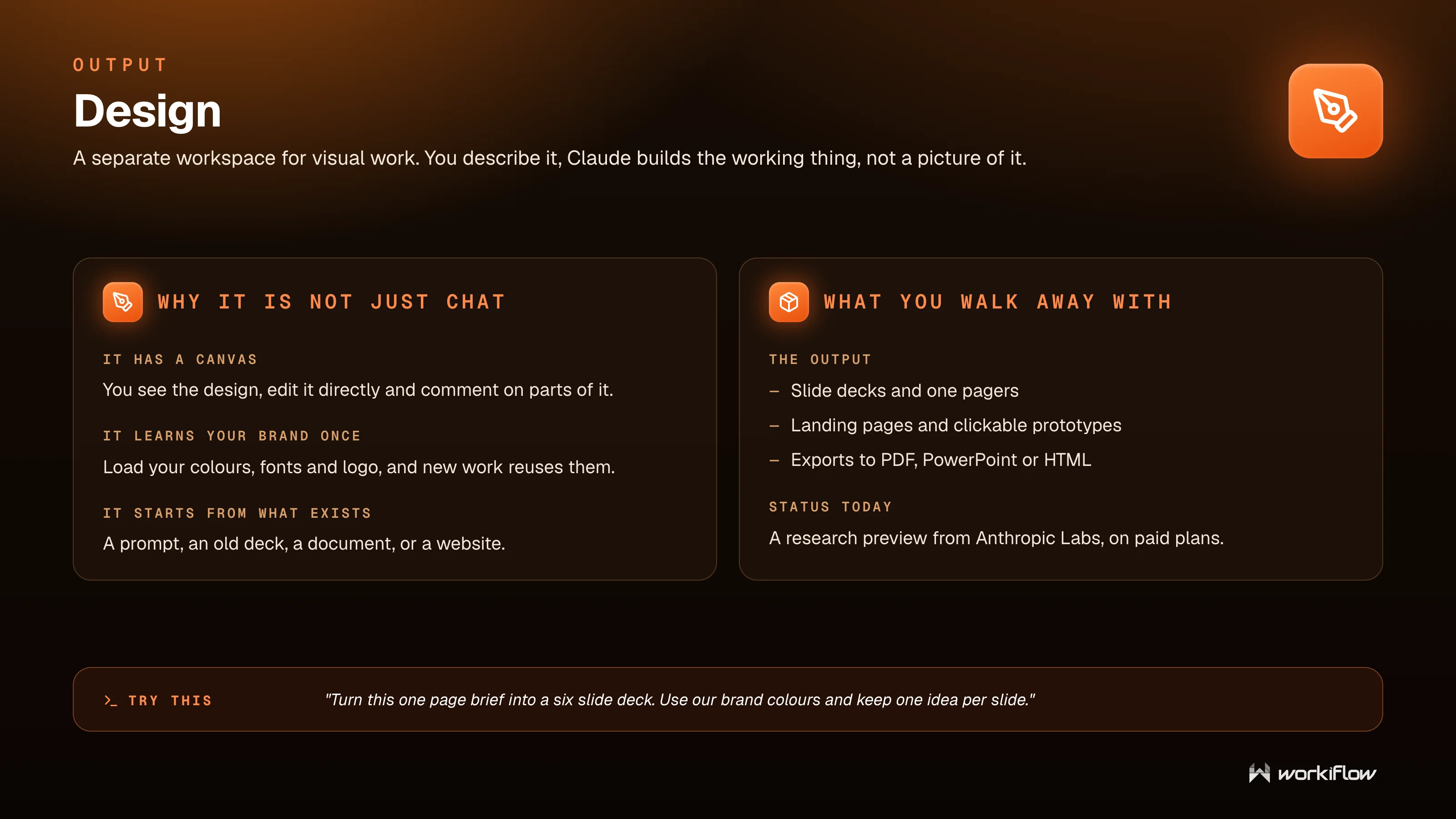
Try this
“Turn this one page brief into a six slide deck. Use our brand colours and keep one idea per slide.”
Skills
A skill is a written procedure you hand Claude once, so you stop explaining the same process every time. In plain terms, it is a document of steps and rules Claude follows for one kind of task. It differs from instructions in a key way: instructions are always on, while a skill is picked up only when it is relevant. Skills can be built in, bundled in a plugin, shared by a colleague, or written by you. You find them under Customize, then Skills, they are on by default and you can switch any off, and you can type a slash to call one on purpose. They work in both Chat and Cowork.
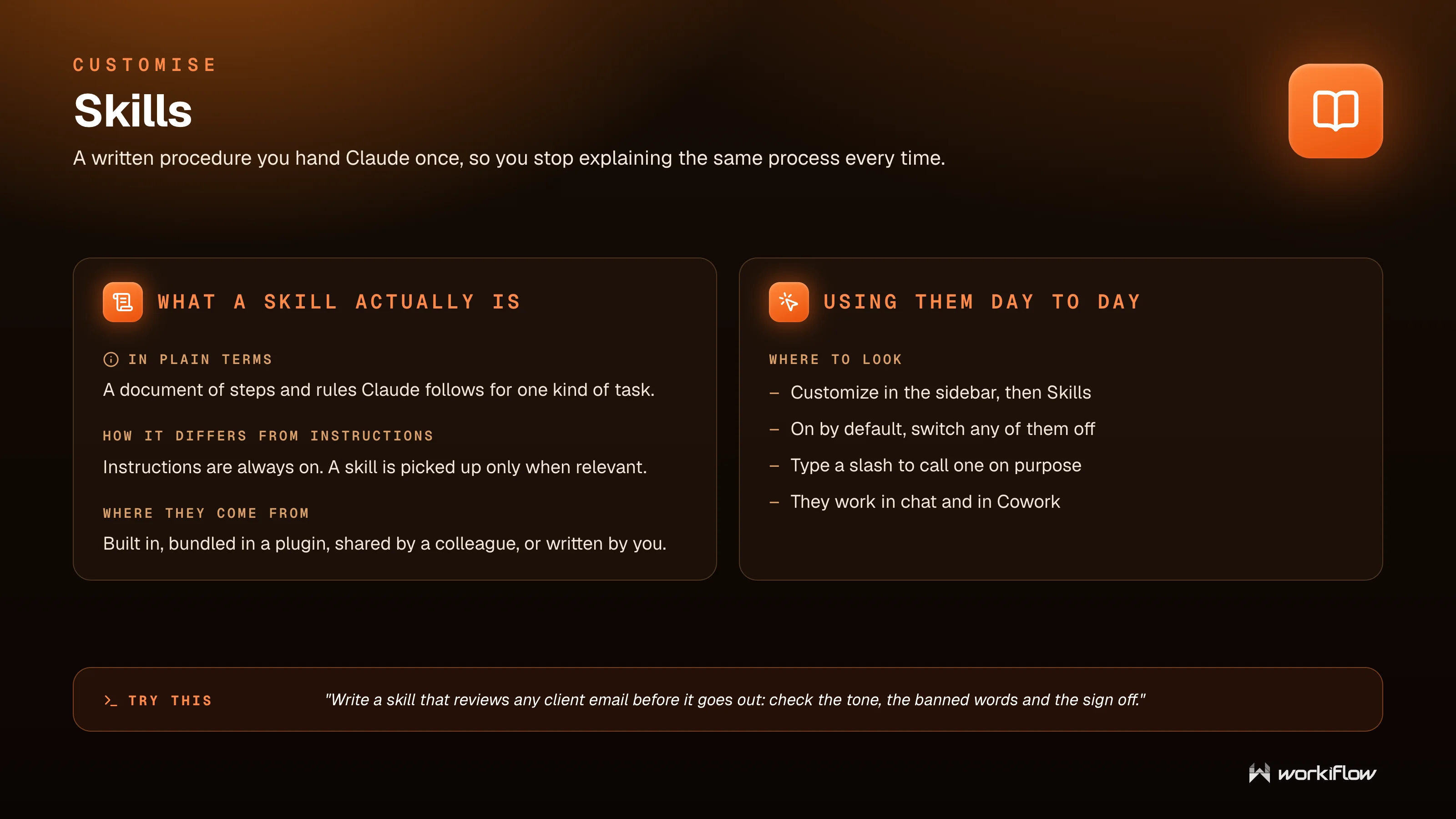
Try this
“Write a skill that reviews any client email before it goes out: check the tone, the banned words, and the sign off.”
Plugins
A plugin is a bundle, where one install sets up a whole role instead of one skill at a time. Inside a plugin you get skills for a role or function, connectors already wired up, and sub agents and slash commands. The payoff is that the first conversation already knows how that job is done at your company. Plugins are included on all paid plans, the skills inside them work in Chat and Cowork, and their sub agents and hooks run in Cowork. Install from sources you trust, and an Owner can push one approved set company wide.
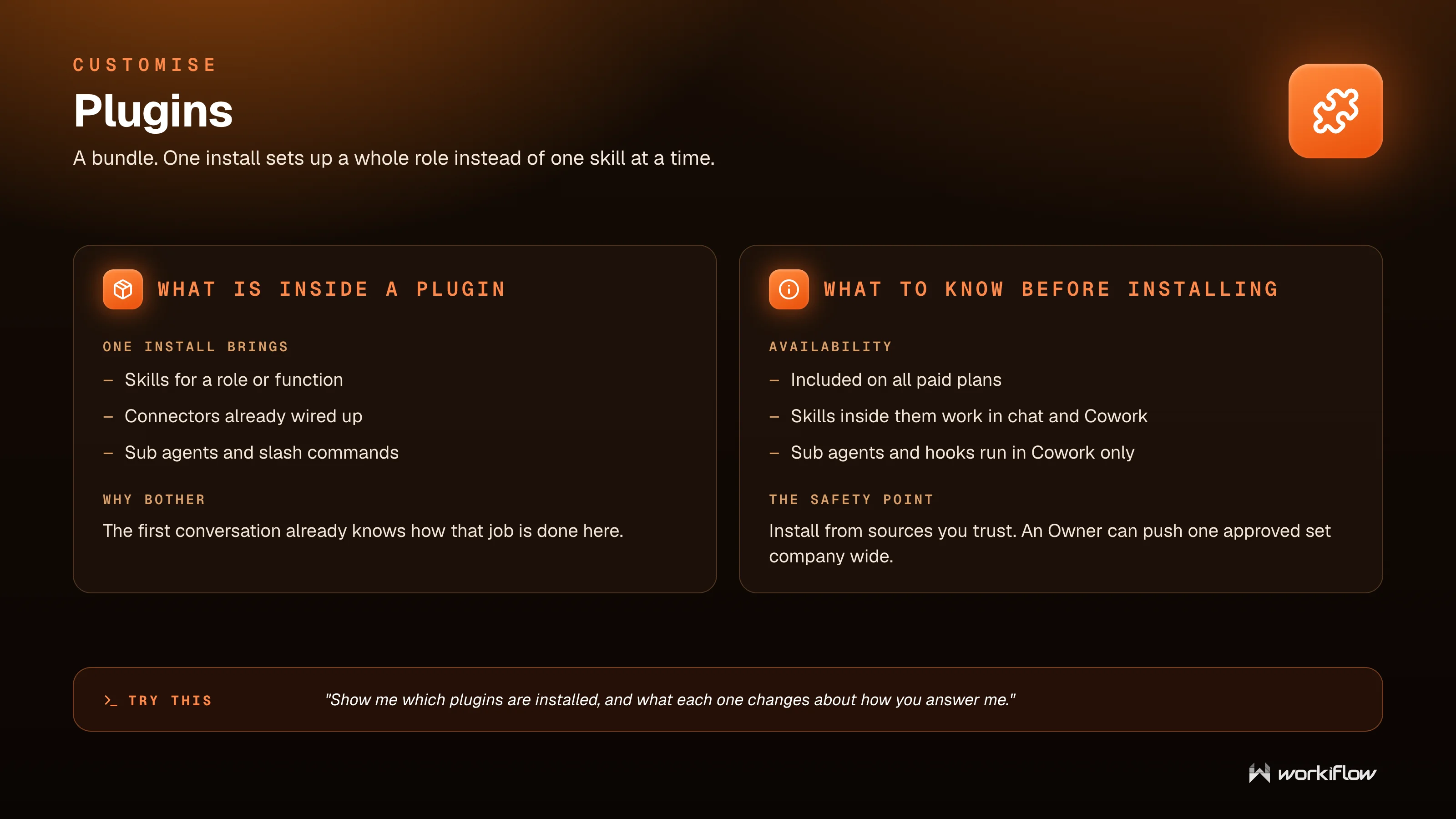
Try this
“Show me which plugins are installed, and what each one changes about how you answer me.”
Scheduled tasks
A scheduled task is a Cowork task you set up once that keeps running on its own, on the cadence you choose. You create one under Scheduled in the sidebar, then New task, and it can reach the same connectors, skills, and plugins a normal Cowork task uses, with every run stored on the Scheduled page. The usual wins are a morning briefing from mail and calendar, a weekly report pulled from Drive, recurring research on a competitor, or tidying a folder on a cadence. The one rule is that it cannot ask you a question mid run, so write the prompt complete, and match the cadence to the source, since running something hourly when the data only changes weekly just spends your allowance.
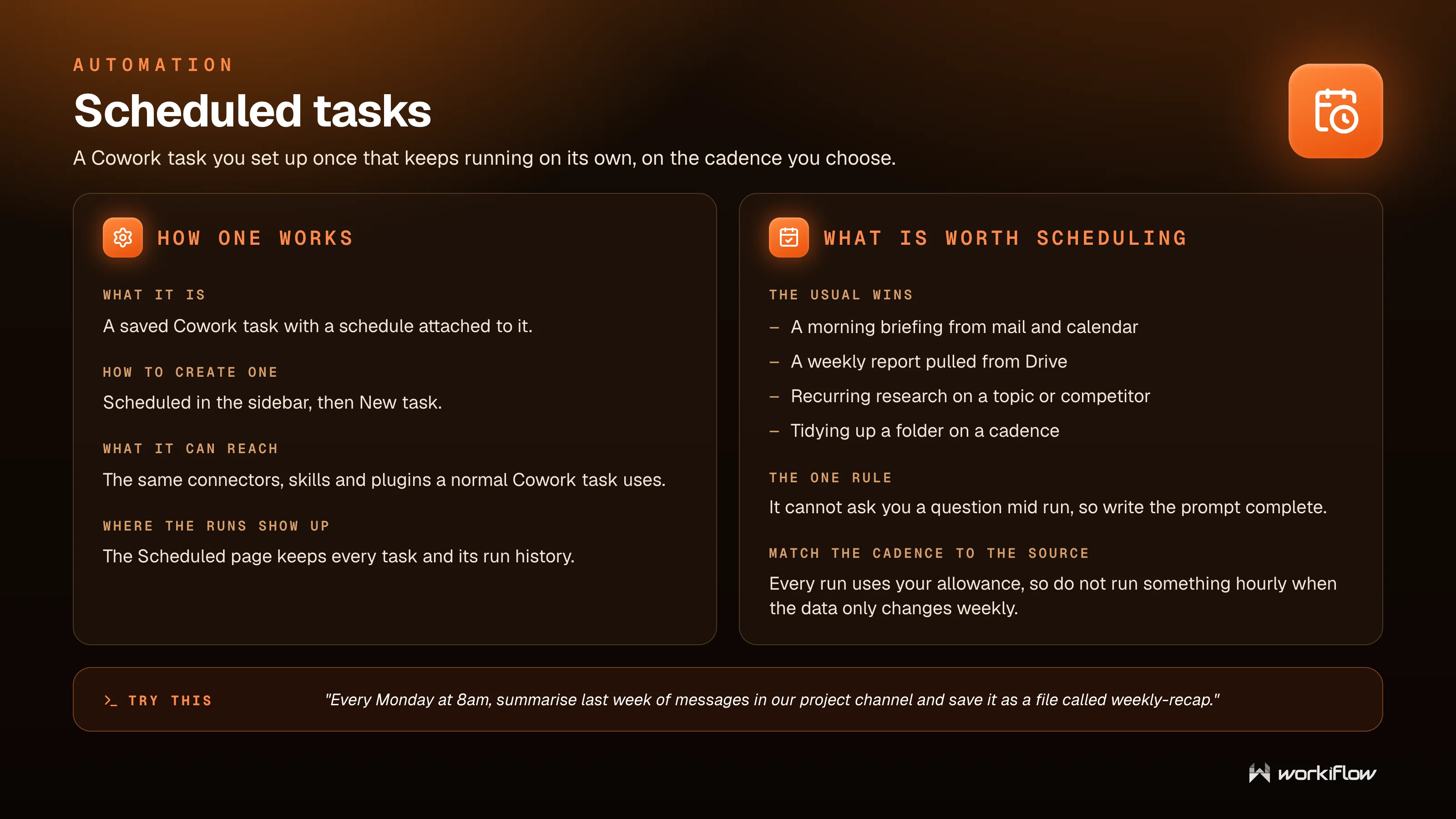
Try this
“Every Monday at 8am, summarise last week of messages in our project channel and save it as a file called weekly-recap.”
Ask my company
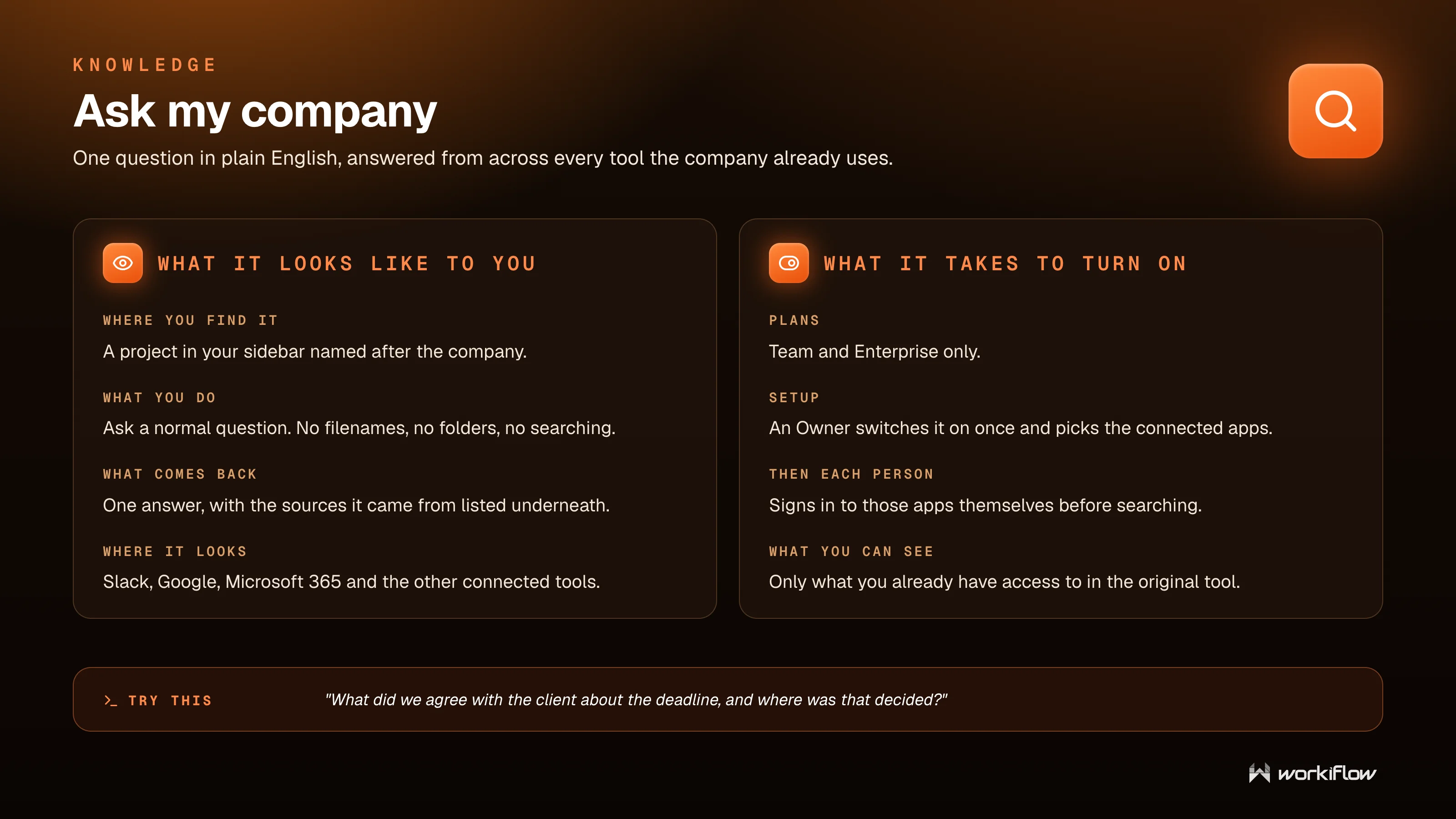
Ask my company answers one question in plain English from across every tool the company already uses. It shows up as a project in your sidebar named after the company, and you ask a normal question with no filenames, folders, or searching. One answer comes back with its sources listed underneath, drawn from Slack, Google, Microsoft 365, and your other connected tools. It is available on Team and Enterprise, an Owner switches it on once and picks the connected apps, and each person signs in to those apps themselves. You only ever see what you already have access to in the original tool.
Try this
“What did we agree with the client about the deadline, and where was that decided?”
Choosing among the things Claude builds
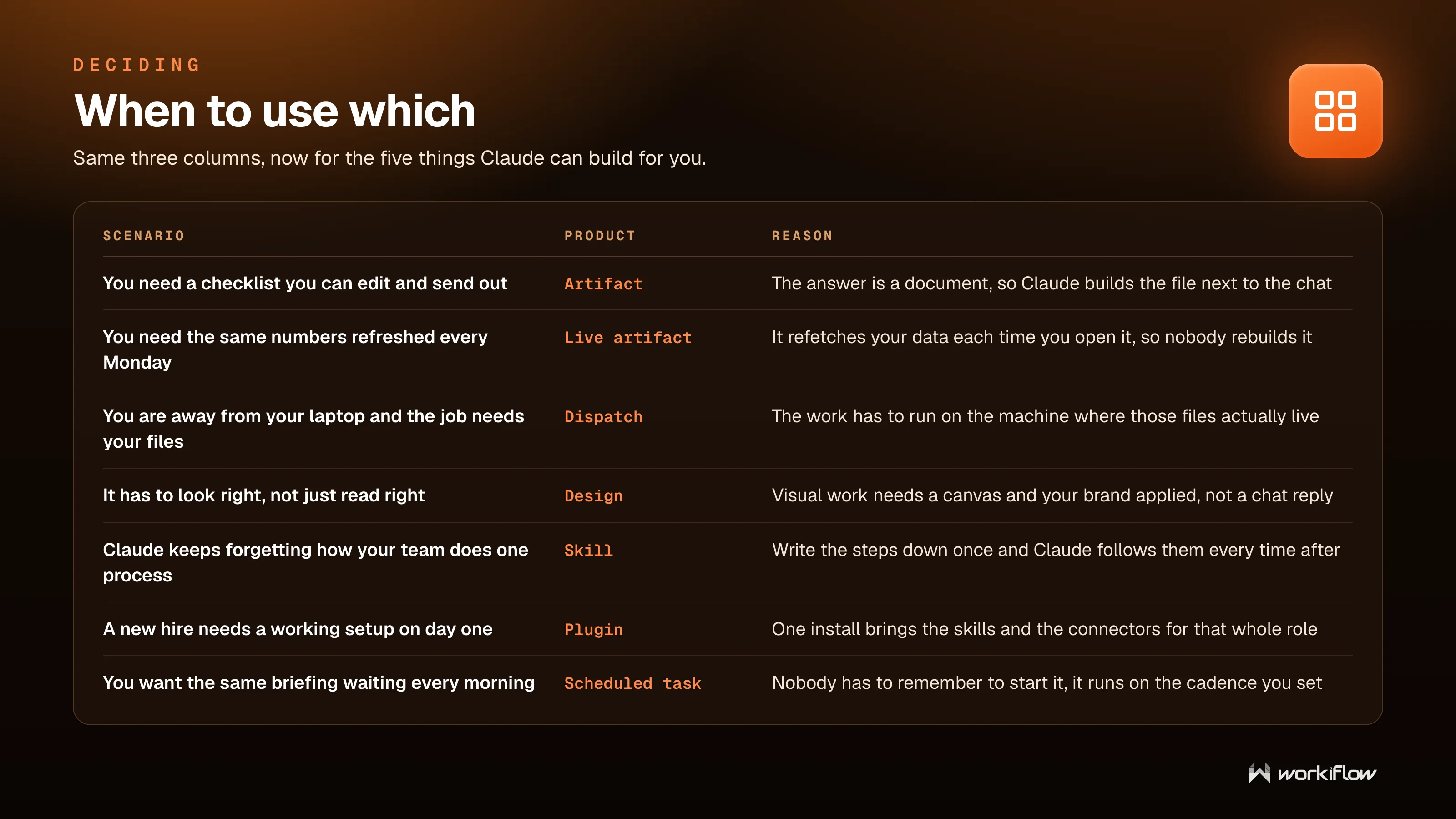
When you need a document you can edit and send, that is an artifact. When you need the same numbers refreshed on a schedule, that is a live artifact. When the job needs your files but you are away from your laptop, that is Dispatch. When it has to look right and not just read right, that is Design. When Claude keeps forgetting how your team does one process, write a skill. When a new hire needs a working setup on day one, install a plugin. And when you want the same briefing waiting every morning, set a scheduled task.
Staying safe
Almost every problem here is prevented by a habit, not a setting. Check before you upload, and if you are unsure the data can go in, ask first. Read the output before you send it, since you are still the one signing off. Keep clients separated with one project each, never one project for all of them. Never paste secrets like passwords, keys, or card numbers into a conversation. Prefer read only access, and give a connector write access only where you truly need it. And know who to tell, with one named person to escalate to when something looks wrong.
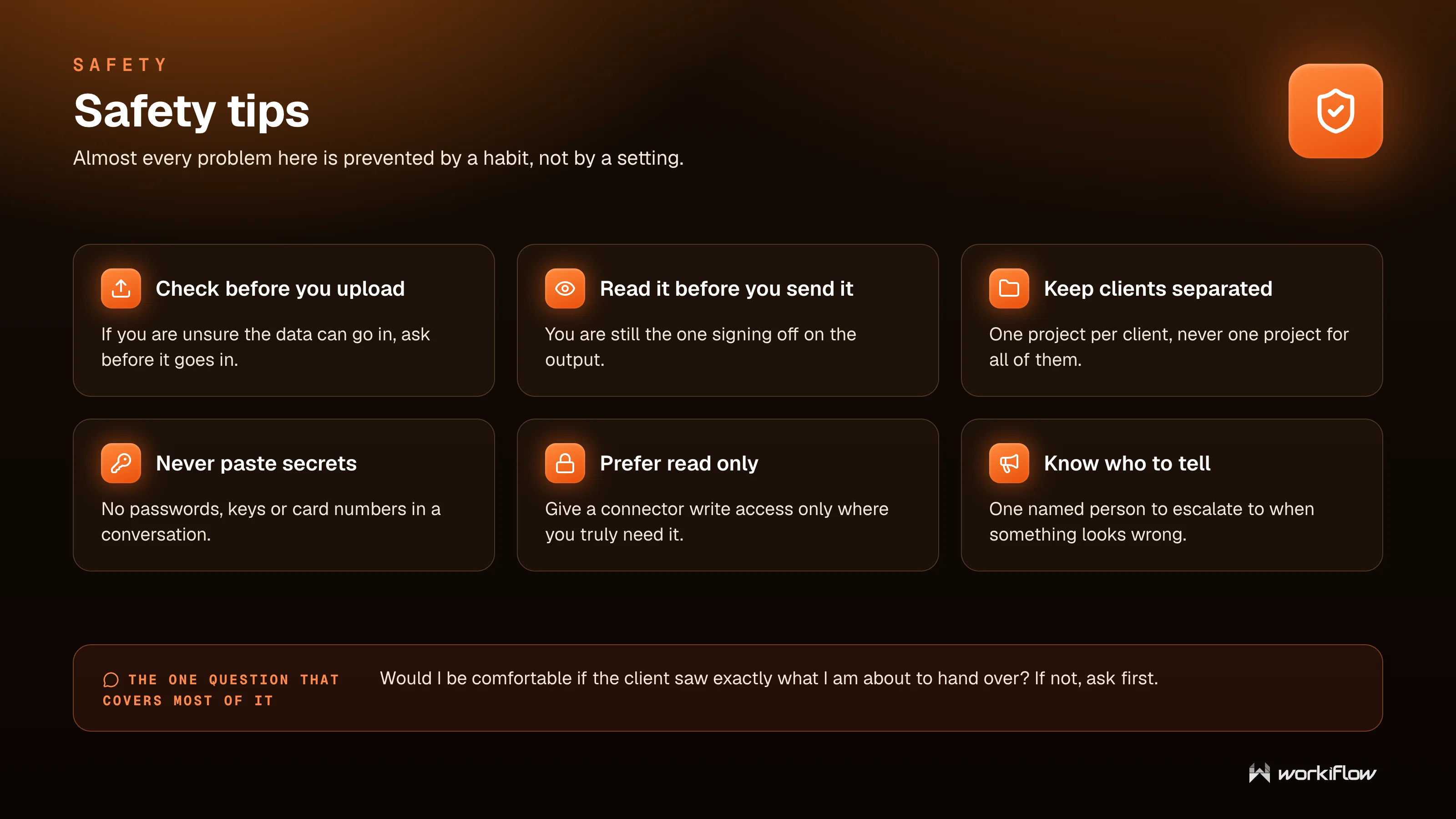
There is one question that covers most of it. Would you be comfortable if the client saw exactly what you are about to hand over? If not, ask first.
Getting started
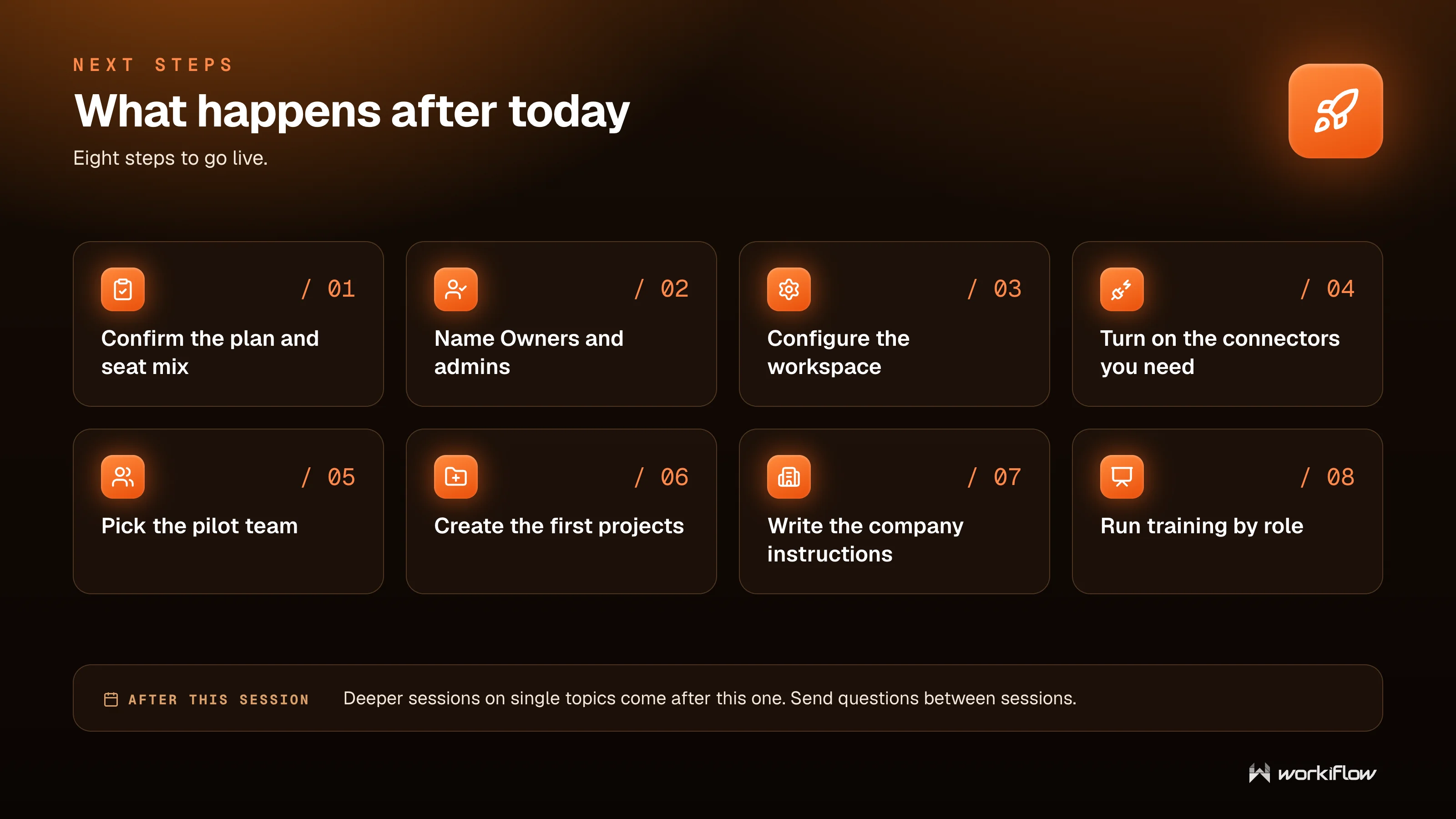
Going live is a short, ordered list. Confirm the plan and seat mix, name your Owners and admins, and configure the workspace. Turn on the connectors you need, pick a pilot team, and create the first projects. Write the company instructions, and run training by role so each team learns the parts that matter to them. Start narrow, prove it works, and expand from there.
Want a team that actually uses all of this?
We run this exact walkthrough with teams as a hands-on enablement session, then help you set up the workspace, connectors, projects, and skills so Claude is delivering value from day one. As a monday.com implementation partner and a member of Anthropic’s Claude Partner Network, we do this every week. Book a free Claude enablement session with Workiflow.
Book a callFrequently asked questions
Claude is a full work platform. You use Chat for quick back and forth, Cowork to hand over whole tasks that run on their own, and Projects to hold the context for recurring work. It connects to tools like Drive, Gmail, and Slack, and it can build documents, dashboards, designs, reusable skills, and scheduled tasks for you.
Chat is a back and forth where you stay involved every turn and get an answer or a simple file in seconds. Cowork is where you hand the whole task over and Claude works on its own for minutes to hours, opening many files, writing new ones, and returning finished work. Chat is light on usage, Cowork is heavier.
A project is a folder for one kind of work that remembers your instructions and reference files, so every chat starts already briefed and your team shares one source of truth. It is not a separate tool, it is where Chat or Cowork runs when the work is recurring.
Leave it on Sonnet for almost everything. Move up to Opus for long reasoning like comparing contracts, or Fable for the most complex work, and drop to Haiku when you just need speed. Going up the list buys less supervision but costs more usage and answers slower.
It is 200,000 tokens on every plan, roughly 150,000 words, and it holds one conversation at a time. When it fills, the oldest part falls out of view, so start a fresh chat per topic rather than letting one run forever.
A skill is a written procedure Claude follows for one kind of task, picked up only when relevant. A plugin is a bundle that installs a whole role at once, including skills, connectors already wired up, and sub agents. One skill teaches one process, one plugin sets up an entire function.
Connectors only reach what you allow, you can keep them read only, and you only ever see what you already have access to in the original tool. On paid plans your data is not used to train models. Most safety comes from habits, keeping clients in separate projects, never pasting secrets, and reading output before sending it.
A feature on Team and Enterprise that answers a plain-English question from across your connected tools like Slack, Google, and Microsoft 365, and lists the sources underneath. An Owner turns it on and each person signs in to those apps, so everyone only sees what they already have access to.
Source: Workiflow Claude Master Training deck. Product details reflect the platform as of July 2026; current pricing and plan features are on the Anthropic pricing page.